Here is how to use phone cleaning wipes safely: dust the screen, wipe gently with a lightly damp wipe, keep liquid out of openings, then finish with a dry cloth.
The routine below covers technique only. For help choosing a product, see the guide to phone screen wipes. Expect a clear, streak-free touchscreen with no liquid pushed into the phone.
What to have ready
A smartphone touchscreen needs very little to clean well. Most mistakes come from too much liquid or the wrong cloth, not from missing equipment.
- A phone cleaning wipe. Pick one that feels damp rather than soaked. Liquid on a phone screen should always be used sparingly, as XDA Developers advises.
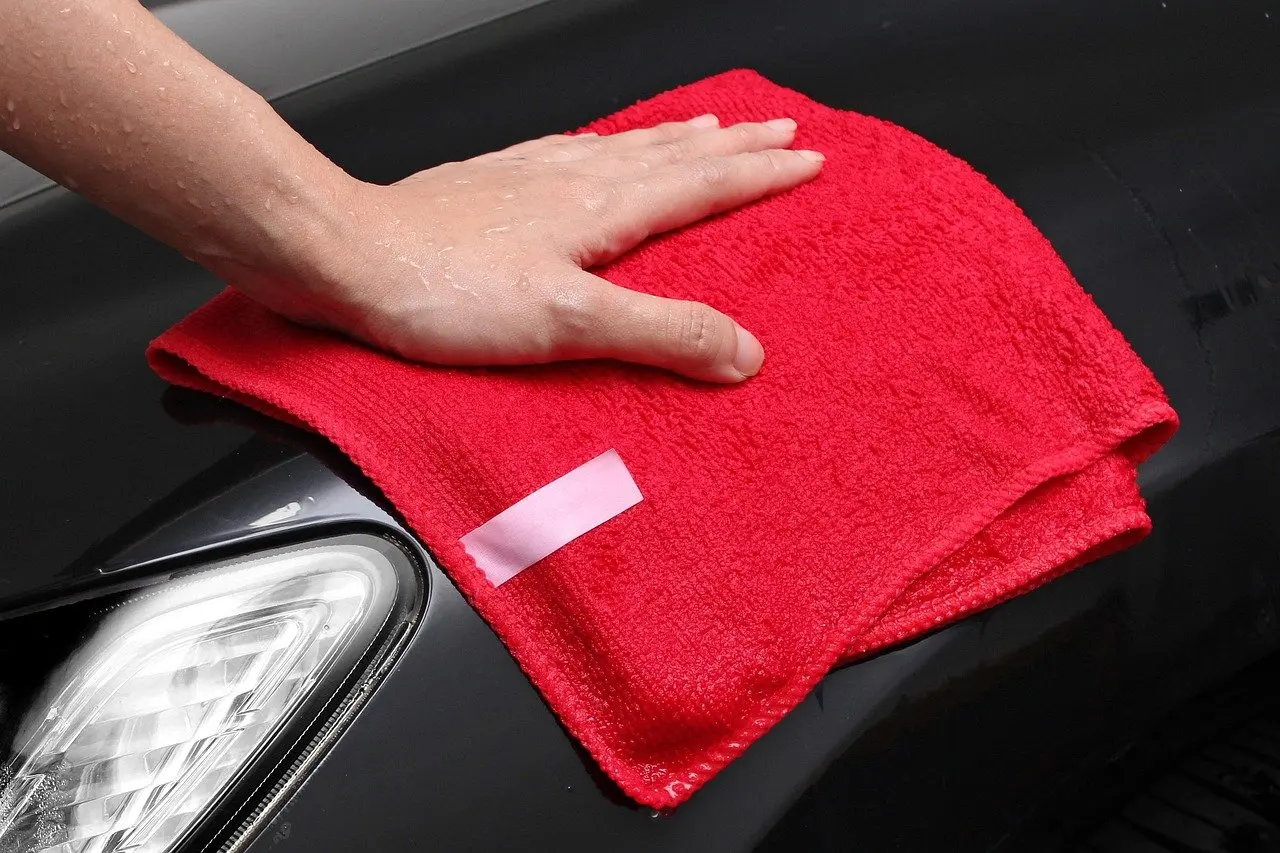
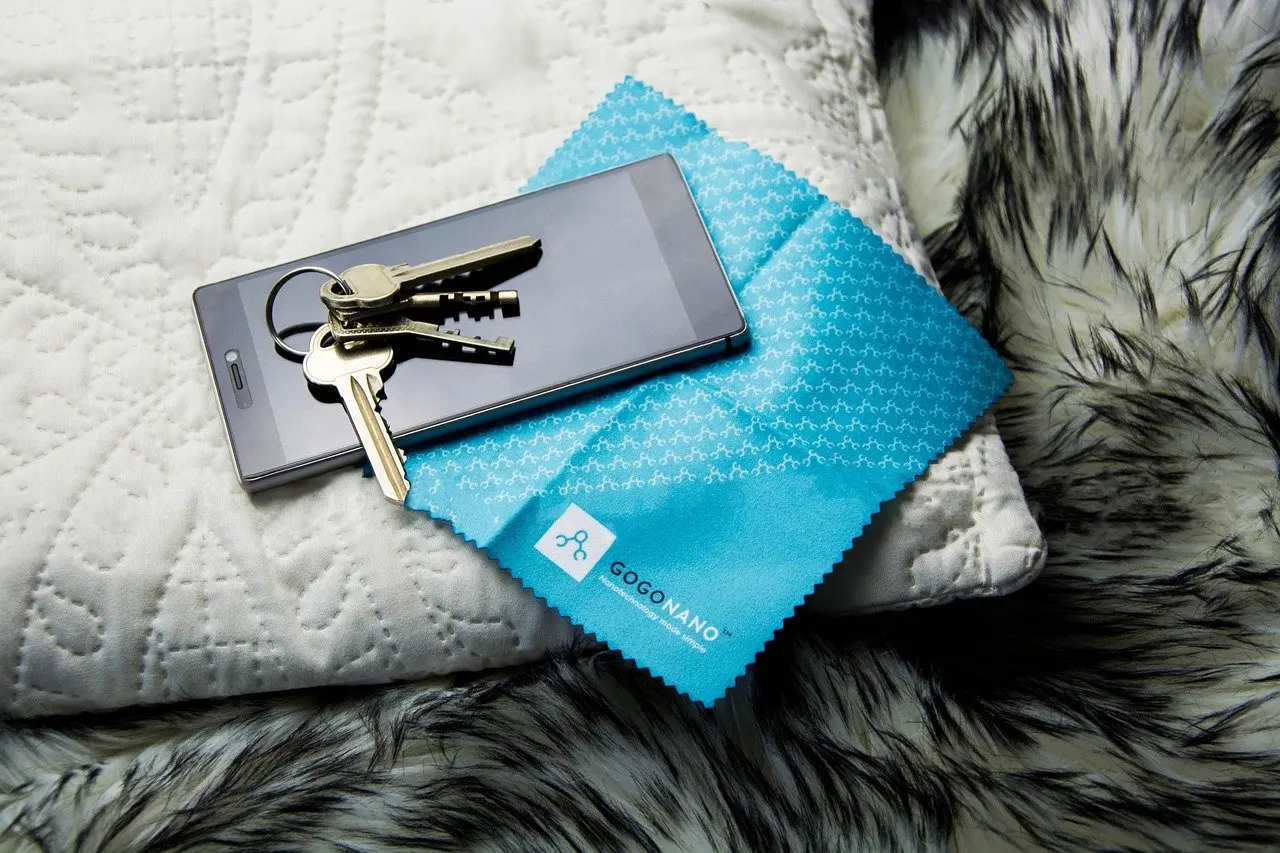
- A dry microfiber cloth. It lifts fingerprints, dust and lint and does the final buff. CNET recommends a dry microfiber cloth for those marks.
- The maker’s cleaning instructions. Lysol advises checking your electronic device’s cleaning instructions before using wipes. Your phone’s own support page takes priority over any general routine.
- A powered-off phone, when the mark is stubborn. Light smudges do not call for it. For harder stains, CNET says to turn the device off and remove the battery if possible.
Step-by-step routine
Work in this order. Each step protects the one after it, and skipping the dry finish is the usual cause of streaks.
Step 1: Check the instructions and decide on power
Read the cleaning section of the phone maker’s support page first. For routine fingerprints, no special preparation is described in the supplied guidance. For stubborn contaminants or stains, switch the phone off and remove the battery if the design allows it. Treat that as a condition, not a default for every wipe-down.
Step 2: Dust the screen first
Brush or lift loose dust off before any wet contact. XDA Developers warns that small grit particles on the glass can scratch it once you start wiping. A dry pass with the microfiber cloth removes dust and lint, and it takes only a few seconds.
Step 3: Prepare the wipe and keep it damp, not wet
Use the wipe itself as the liquid source and never add more. CNET says never to spray anything directly onto the screen, which also rules out spraying a bottle at the glass and then wiping. If a wipe feels wetter than lightly damp, choose a drier one, because excess liquid is what travels toward the edges of the phone.
Step 4: Wipe gently across the glass
Fingerprints and skin oils come off with light contact. XDA Developers notes that gentle pressure is enough, so there is no need to press hard. Cover the whole screen systematically so that no band of residue is left behind, and keep the wipe moving instead of rubbing one spot.
If the wipe contains isopropyl alcohol, restrain yourself further. XDA Developers says regular alcohol use can damage the oleophobic coating of a screen. The article on what is in screen cleaning wipes explains the ingredients you may meet, and a separate piece answers do phone wipes kill germs.
Step 5: Keep moisture out of openings and clean the edges
CNET advises avoiding moisture in any openings such as the speaker or mic. In practice that means wiping the glass and the case edges with the wipe, but stopping short of speaker grilles, microphone holes and other ports. Wipe around the camera lens rather than pressing into the gaps beside it, and finish the back and sides of the case the same way.
Step 6: Dry and buff to remove streaks
A damp wipe leaves a film that dries unevenly, and the dry pass is what removes it. CNET recommends going over the screen again with a dry section of the cloth to wipe away any moisture. Lysol’s own wipe guidance also ends with wiping the screen with a dry cloth. Use a clean, dry part of the microfiber cloth so that you do not drag the film back across the glass.
Streak fixes and checkpoints
Dark screens show every smear, so check the result with the display off and the light at an angle. If marks remain, find the cause in the table before wiping again.
| Checkpoint | What you see | Correction |
|---|---|---|
| Moisture left behind | Smears that dry unevenly | Go over the screen again with a dry section of the cloth. |
| Hazy marks after using water | Faint residue on the glass | Switch to distilled water, which is free of impurities that leave streaks. |
| Grit under the cloth | Scratches or dragging noises | Stop, then dust the screen before wiping again. |
| Liquid near the speaker or mic | Dampness around the openings | Keep the wipe away from openings and dry the area gently with the cloth. |
These corrections follow guidance from CNET and XDA Developers.
Distilled water matters mainly for the damp stage of cleaning. Lightly dampen only a section of the microfiber cloth, wipe gently, then use the dry section to remove the moisture. Never speed up drying with heat, and let the phone dry in the open air.
How often to wipe your phone
No fixed interval is backed by the supplied guidance, so base the timing on what the screen looks like.
Between wipe sessions, a dry microfiber pass handles fingerprints, dust and lint without adding liquid, and it is the gentler option for the screen coating. That matters most if your wipes contain isopropyl alcohol, since regular use can damage the oleophobic coating.
Clean the screen thoroughly before fitting a screen protector. XDA Developers advises buffing dirt off the glass beforehand, because anything trapped underneath stays there.
Frequently asked questions
Can I use a paper towel with a wipe?
No. CNET warns that paper towels and other paper-based towels can leave scratches on the screen, so use a microfiber cloth for the dry pass.
What if I do not have a microfiber cloth?
XDA Developers names a cotton t-shirt or a soft cotton cloth as the best alternative. Keep it clean and free of grit.
Can I dry the phone with a hair dryer?
No. CNET says never to use a hair dryer, oven or microwave to accelerate drying, so dry the screen with the cloth and let any remaining moisture evaporate.